
ℹ️ This is part of the self-learning log as I explore Docker and Portainer.
Recently, I have been playing with Portainer - a Container Management system for Docker. Because of my curiosity, I constantly try different containers for different solutions and sometimes stick to some useful apps.
Once in a while, I keep seeing Docker containerized app notification that there is an update available. However, it was tricky for me to figure out how to update the container using Portainer. It turns out, it’s as simple as just pressing edit container and update container image. Here is a visual guide for my future self :-)
Updating Docker Container
First, go to your list of containers and select the container that needs to be updated.
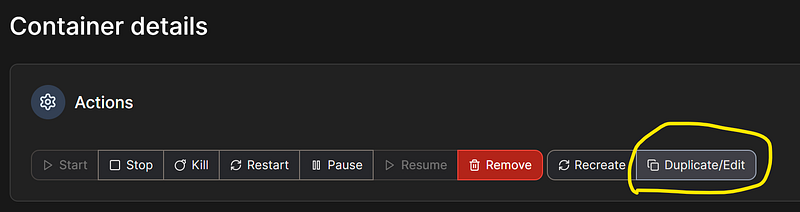
Select “Duplicate/Edit” option.
Once you select “Edit”, you will have an option for container image version.
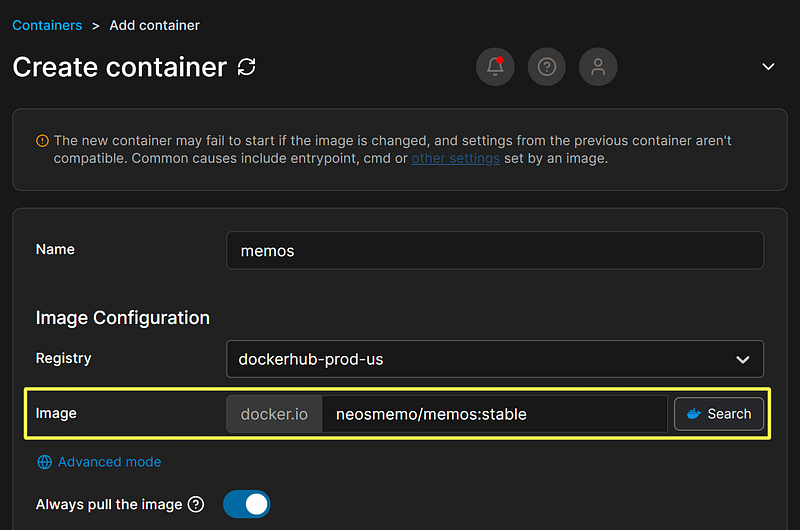
Select the container image version here.
In the “Image” section you can specify the version or keep latest or stable to get the latest image based on the container you are using. If you are unsure, go to the docker hub or source of the container to get the exact tag.
Finally, click on the “Deploy the container”.

Once done, deployment will trigger the image update.
This will pull the latest image and re-deploy the container with the latest image.
⚠️ A few important caveats to keep in mind
- This assumes that the container configuration is persisted in the host machine, so that when it redeploys it will be able to resume from where you left off with the container app.
- Downgrading may have unintended consequences.
- Always look at the project/app documentation on upgrading if there is something special that needs to be done to migrate your app.